Apple Pay
Set up and use Apple pay
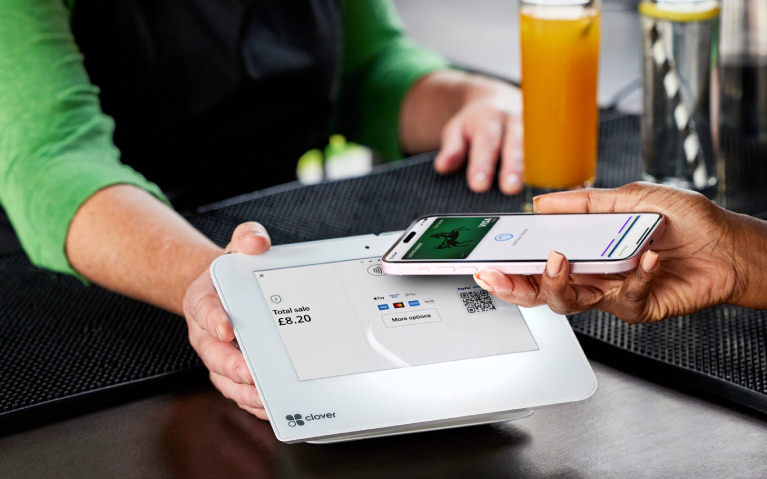
- Pay in shops with your mobile devices instead of cash or card.
- Make paying online even easier.
- And you still get your Everyday Offers rewards on payments.
To protect you from fraud, we may restrict the payments you can make using Apple Pay.

How to register
We'll guide you through it.

(1 min 20 secs)
-
The simplest way to add your card to Apple Pay is using the mobile app.
- Log in to the app and select 'Cards' on the bottom right. Then select 'Apple Pay'.
- Select the debit or credit card to be added and select 'Add to Apple Wallet’. Then select the device you’d like to add your card to.
- Confirm your card details and accept the terms and conditions.
- Your card is now added to Apple Pay and you can select this card as your default card
To see how to do this, watch our video ( 1 min 20 secs).
-
- Open the Apple Wallet app on your iPhone then select the + sign in the top-right corner. Or select 'Wallet & Apple Pay' from either the Apple Watch app, iPad settings or Mac System preferences followed by 'Add Card'.
- Select 'debit or credit card'.
- To add your card details, tap or hold your card close to your iPhone, or using your camera scan the card or type the details manually.
- Then follow the step-by-step guide.
- You may need to verify your card. Select one of the options on screen and follow the instructions.
- Your card is now added to Apple Pay and you can select this card as your default card.
-
If you’ve been unable to add your card to Apple Pay using the Apple Pay wallet, follow this step-by-step guide.
- Go in to the Apple Pay wallet app and remove the card if shown as pending.
- Log in to the mobile banking app and select ‘Cards’ at the bottom right.
- Select the card you want to add to Apple Pay, select Apple Pay and ‘Add to Apple Wallet’ then follow the onscreen instructions.
Your card is now added to Apple Pay and you can select this card as your default card.
-
Follow the steps below to remove your card from your Apple wallet.
- Go to the wallet app on your device.
- Select the card you want to remove, then the ‘More’ button.
- Select ‘Card Details’, then ‘Remove Card’.
If you remove a card, you can add it again later.
Getting started in the app
Let’s look at the details
You may also like
Important legal information
Apple Pay is not available on all debit cards, credit cards and accounts. Restrictions include: Non-personal accounts, Electron cards, additional credit card holders and customers under 13 years of age. Available on iPhone 6/6+ and above, iPad with Touch ID and Apple Watch