Change your business address
If you're a full access user, you can update your business, registered, mailing and personal addresses within Online for Business and the Business banking app.
Help and support
Supporting your banking needs
If you're a full access user, you can update your business, registered, mailing and personal addresses within Online for Business and the Business banking app.
Online banking
Our online services
You can pay in cheques, transfer money, and do much more, all from your mobile.
Accounts and savings
Everyday banking and payments
Find out more
Open a business account for a free 6-month Xero subscription and up to £400 in rewards.
Borrowing
Loans, cards and finance
Find out more
Take payments
Card readers and online
Existing customers
Smarter card payments for smaller businesses with Lloyds Accept.
International trade
Business at home and abroad
Existing customers
Insurance
Find the right cover
Find out more
Help protect your business from legal fees and compensation costs if a customer, client or other third party makes a claim against you.
Insights and resources
Sector, start-up, run and grow
Guidance and support to help you reach new markets and trade with confidence.
Corporate solutions
For corporates & institutions
Useful resources
Find the latest insights, reports, expert commentary, client case studies, and economic and markets updates.
Business Finance Assistant will close on 14 December 2026.
If you want to keep your information, you'll need to download it before the service closes. This guide explains how to download your Business Finance Assistant data, so you can keep a copy for your records.
You can export your Products and Services, Suppliers, Customers, Expense and Invoice data to Excel. You can also request a full archive of your accounting data as a backup.
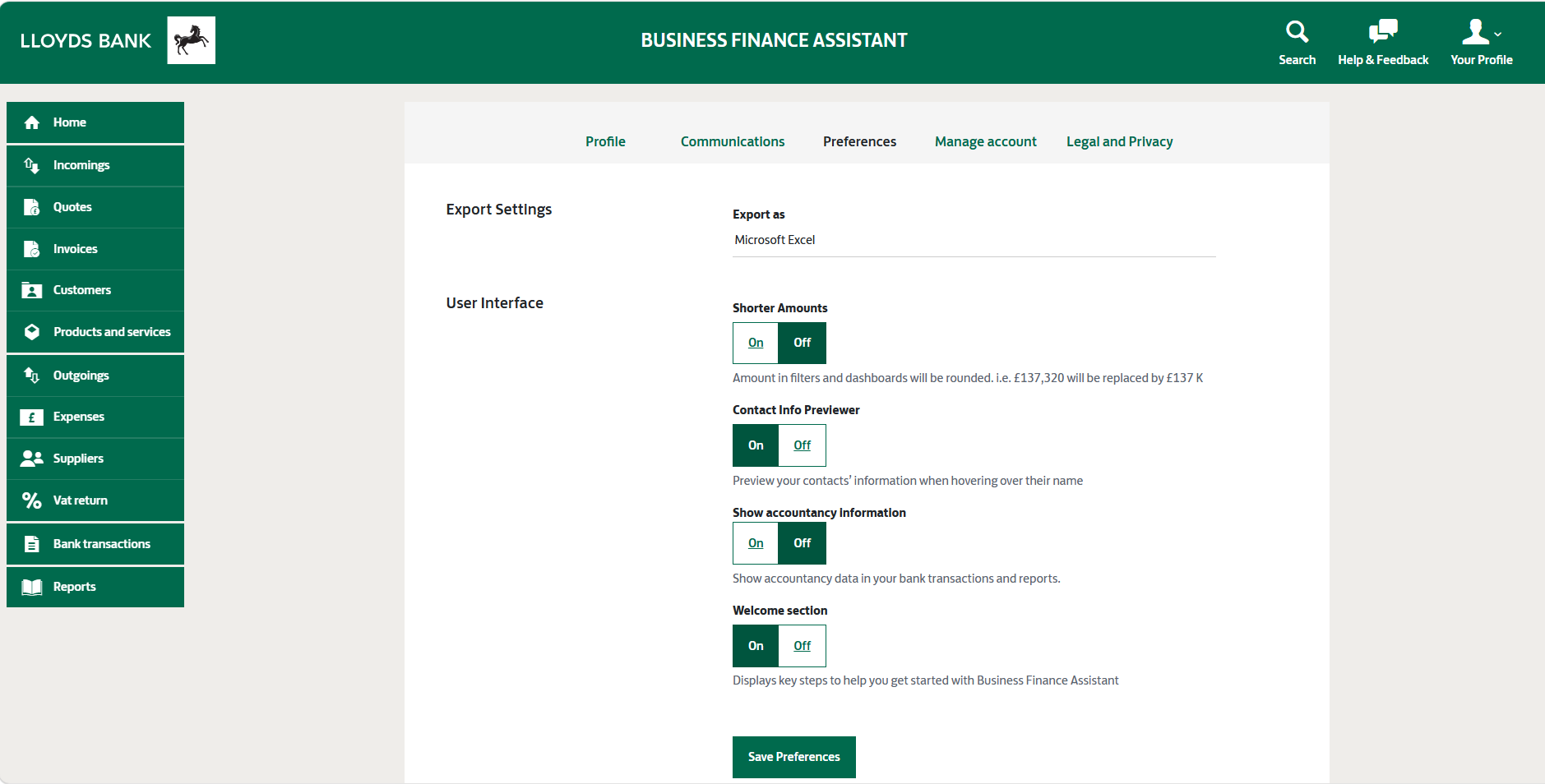
You can export data directly from the relevant page within Business Finance Assistant.
From the left-hand menu, choose the data you'd like to export: either 'Invoices', 'Expenses,' 'Products & Services', 'Suppliers', 'Customers' or 'Journal Entries.'*
Select the three dots in the top-right corner of the page, next to the green 'New' button.
Select 'Export'.
An Excel workbook with the selected data will download automatically.
You can export data directly from the relevant page within Business Finance Assistant.
From the left-hand menu, choose the data you'd like to export: either 'Invoices', 'Expenses,' 'Products & Services', 'Suppliers', 'Customers' or 'Journal Entries.'*
Select the three dots in the top-right corner of the page, next to the green 'New' button.
Select 'Export'.
An Excel workbook with the selected data will download automatically.
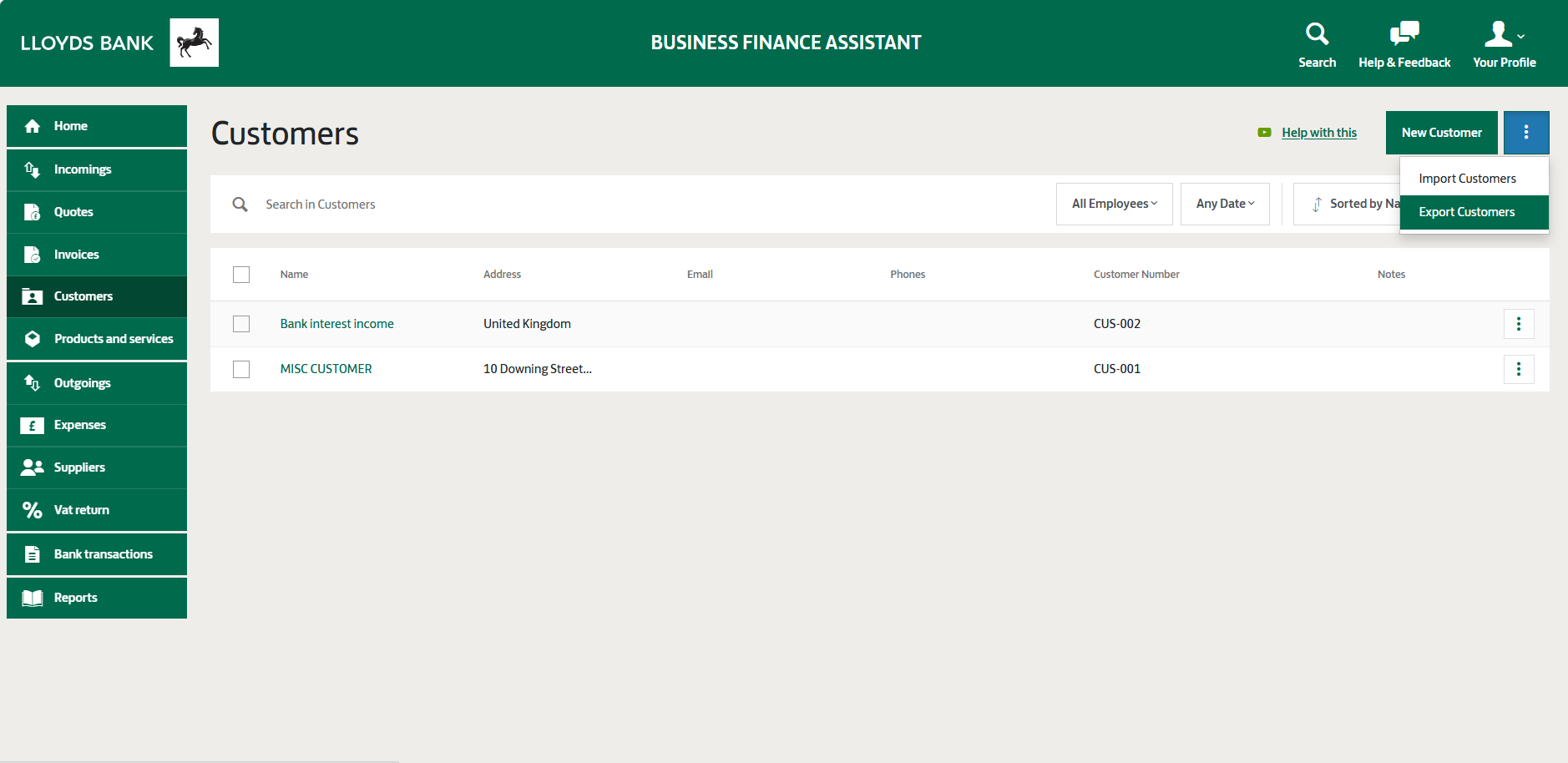
* If Journal Entries is not shown in the left-hand menu, you’ll need to update your preferences to make it visible.
* If Journal Entries is not shown in the left-hand menu, you’ll need to update your preferences to make it visible.
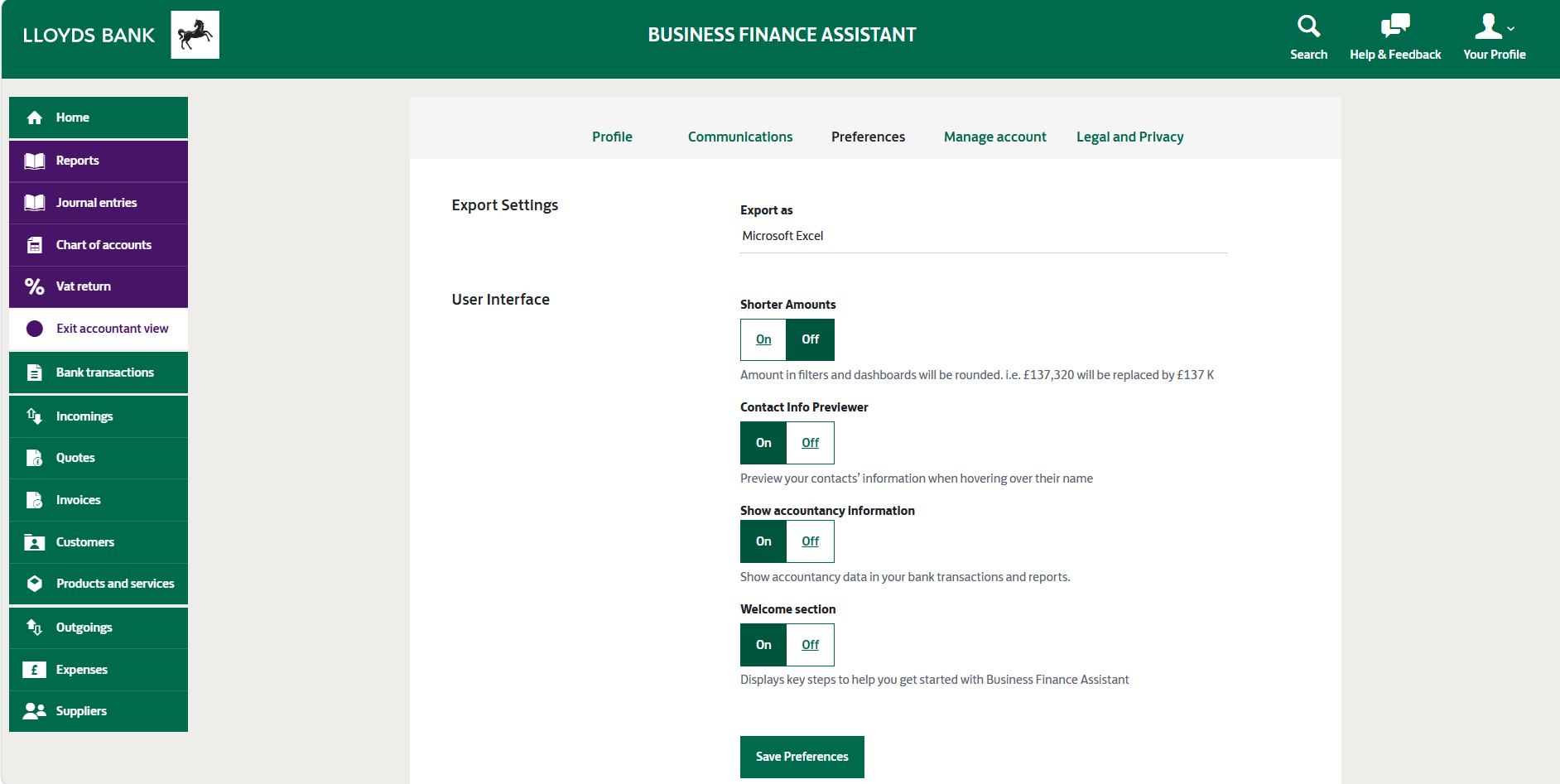
You can request a full archive if you want to download accounting data for a specific period, such as a date range or full financial year. You can request the archive from the date you opened your Business Finance Assistant account.
You’ll receive a secure email from Business Finance Assistant when your accounting data is ready to download. Follow the link in the email to download your archived data.
You’ll receive a secure email from Business Finance Assistant when your accounting data is ready to download. Follow the link in the email to download your archived data.
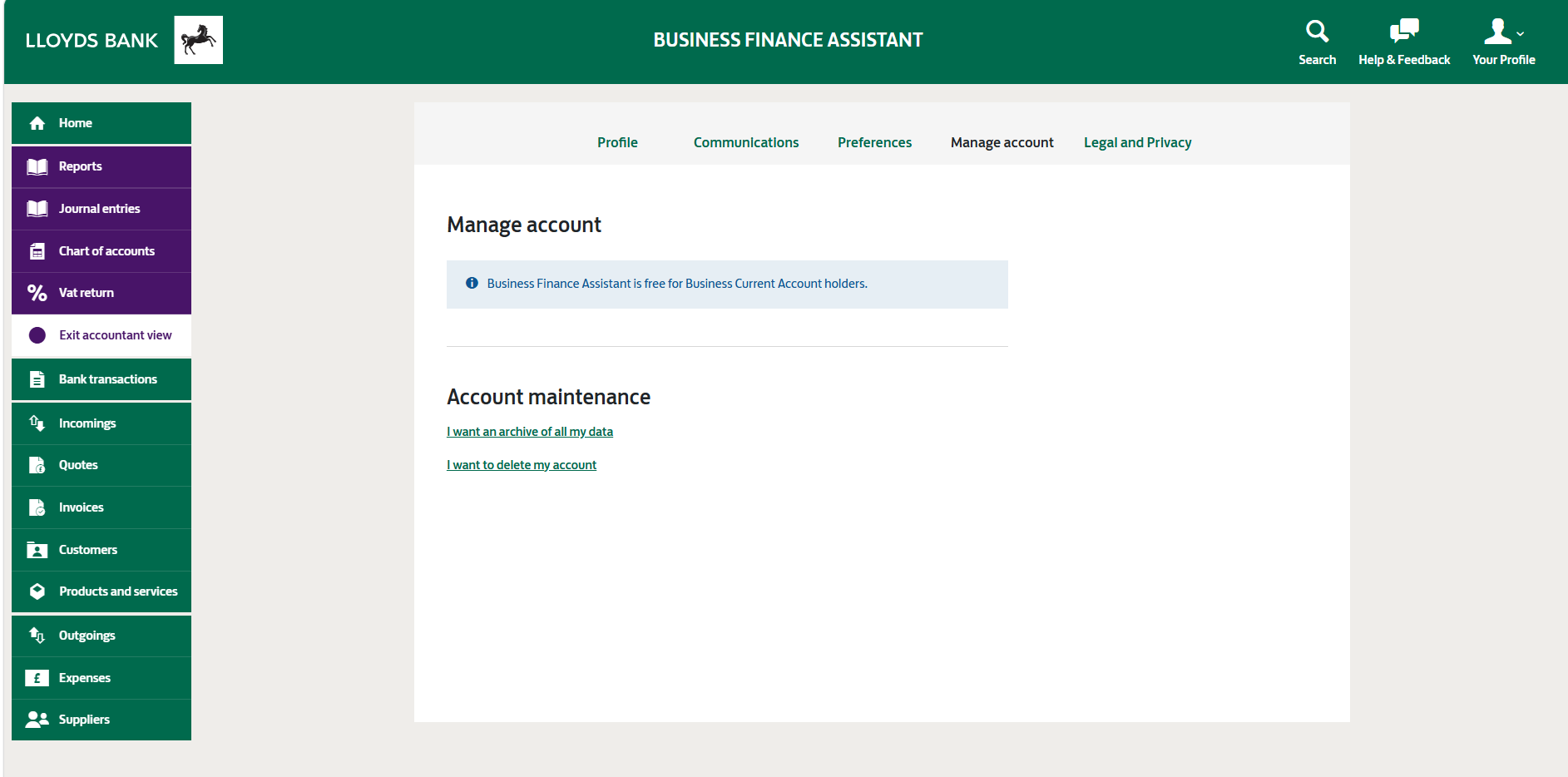
If you're having difficulty downloading data from BFA, please contact the BFA Support Team at support@businessfinanceassistant.lloydsbank.com