Change your business address
If you're a full access user, you can update your business, registered, mailing and personal addresses within Online for Business and the Business banking app.
Help and support
Supporting your banking needs
If you're a full access user, you can update your business, registered, mailing and personal addresses within Online for Business and the Business banking app.
Online banking
Our online services
You can pay in cheques, transfer money, and do much more, all from your mobile.
Accounts and savings
Everyday banking and payments
Find out more
Open a business account for a free 6-month Xero subscription and up to £400 in rewards.
Borrowing
Loans, cards and finance
Find out more
Take payments
Card readers and online
Existing customers
Smarter card payments for smaller businesses with Lloyds Accept.
International trade
Business at home and abroad
Existing customers
Insurance
Find the right cover
Find out more
Help protect your business from legal fees and compensation costs if a customer, client or other third party makes a claim against you.
Insights and resources
Sector, start-up, run and grow
Missed the deadline for the first quarterly submission? Prepare for the next deadline on 7 November.
Corporate solutions
For corporates & institutions
Useful resources
Find the latest insights, reports, expert commentary, client case studies, and economic and markets updates.
It’s important we have your correct contact details in case we need to get in touch.
If you’re a Full Access User, you can add and remove phone numbers and amend your email address using Online for Business and the Business banking app.
You can find out how to update your personal contact details here.
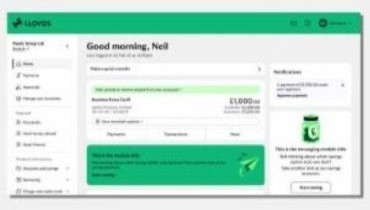
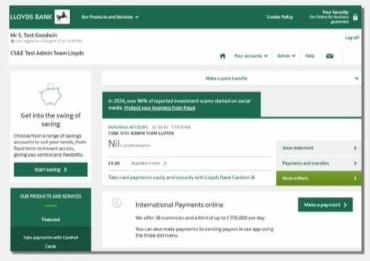
From June 2026, we're refreshing Online for Business with new branding, an updated design and improved navigation. Over the next few weeks, you may see either the current layout or the new experience.
The guidance below will help you with both versions.
To update your business phone number using Online for Business, you’ll need to log in. Log in to Online for Business
We might need to use it to contact you, for example to check it is you when making online purchases or payments.
Important
You must add your new number before you can remove the old one.
Important
You must add your new number before you can remove the old one.
Important
Add your new number before removing the old one.
The easiest way to update your business phone number is in Online for business. If you’re not online find out how to register.
If you’re unable to update this online, you can also complete and post a form.
We might need to contact you to check it is you when making online purchases or payments.
Important
Add your new number before removing the old one.
From June 2026, we're refreshing Online for Business with new branding, an updated design and improved navigation. Over the next few weeks, you may see either the current layout or the new experience.
The guidance below will help you with both versions.
Important
You must add your new number before you can remove the old one.
Important
You must add your new number before you can remove the old one.
The easiest way to update your business phone number is in Online for business. If you’re not online find out how to register.
If you’re unable to update this online, you can also complete and post a form.
To update your business email address using Online for Business, you’ll need to log in. Log in to Online for Business
If you’re a Full Access User, you can update your business email address in Online for Business and the app.
If you’re a Full Access User, you can update your business email address in Online for Business and the app.
From June 2026, we're refreshing Online for Business with new branding, an updated design and improved navigation. Over the next few weeks, you may see either the current layout or the new experience.
The guidance below will help you with both versions.
Not registered for the app?