Change your business address
If you're a full access user, you can update your business, registered, mailing and personal addresses within Online for Business and the Business banking app.
Here are ways you can view and search the transactions on your business account statements.
To view your statement transactions using Online for Business, you’ll need to log in. Log in to Online for Business
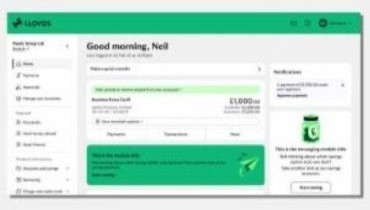
You can view your transactions online. These can be printed or downloaded (exported).
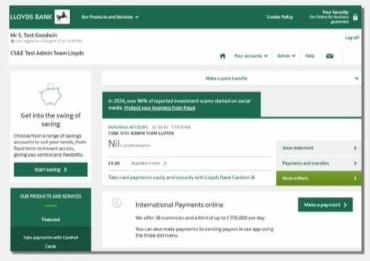
You can view your statements online. These can be printed or downloaded (exported).
There's more you can do with your statements in Online for Business. Select an option below to learn more.
If you see the new look, use these steps.
If you're looking for a specific transaction - for example, a purchase or a bill payment - you can search your history by 'Search transactions'. You can search by date, amount or the type of transaction going back up to 12 months.
Change the order of your transactions: to see your latest transactions at the top or bottom of your statement, just select the green triangle next to the Date field. This will flip the order of your statement.
If you don't see the new look, use these steps.
If you’re looking for a specific transaction – for example, a purchase or a bill payment – you can search your history by ‘Search your statement’. You can search by date, description or the type of transaction over a three-month period.
Change the order of your transactions: to see your latest transactions at the top or bottom of your statement, just select the green triangle next to the Date field. This will flip the order of your statement.
If you see the new look, use these steps.
Your Online for Business statement has quick links to recent months, so it’s even easier to find your way around when you’re looking for recent transactions.
You'll find these links at the top of the 'Transaction' page.
If you don't see the new look, use these steps.
Your Online for Business statement has quick links to recent months, so it’s even easier to find your way around when you’re looking for recent transactions.
You’ll find these links at the top of the transaction list, just below the search bar.
You can find out more about a specific transaction by clicking on the transaction description. It will expand to show further details.
Find out how to print or order a paper copy of your statement.
If you use Online for Business, the Business banking app or Commercial Banking Online, you can switch to paper-free statements. To do this, you’ll need to be the business owner.
If you see the new look, use these steps.
If you don't see the new look, use these steps.
To export your transactions to CSV or QIF:
Transactions made on weekends that fall at the end of the month won't appear straightaway in the app. You'll see these transactions in the app on the first day of the next month.
If you need to see them before this, you can view them in Online for Business.