Make an international payment

You can make international payments in Online for Business, the Business banking app and Commercial Banking Online.

Online for Business

From June 2026, we're refreshing Online for Business with new branding, an updated design and improved navigation. Over the next few weeks, you may see either the current layout or the new experience.

The guidance below will help you with both versions.

Log in to Online for Business

It's easy in the app

You can make International Payments from your Business Banking Mobile app, to any of your existing payees.  

Making an International Payment from your app

  1. Go to ‘More actions’ next to the account you want to send money from.
  2. Under ‘Payments and transfers’, select Make an international payment’.
  3. Tap ‘Select an International Recipient’, then select an existing recipient from the list.
  4. Enter the amount you want to pay, along with the currency you want to send.
  5. Tap ‘Continue’ to review your payment.
  6. Enter your password and tap ‘confirm payment’ to make the International Payment.

To add new payees, log in to Online for Business on your desktop. Any new payees you set up will be available in your mobile app, the next time you log in.

More on the app

It's easy in the app

You can make International Payments from your Business Banking Mobile app, to any of your existing payees.  

Making an International Payment from your app

  1. Go to ‘More actions’ next to the account you want to send money from.
  2. Under ‘Payments and transfers’, select ‘Make an international payment’.
  3. Tap ‘Select an International Recipient’, then select an existing recipient from the list.
  4. Enter the amount you want to pay, along with the currency you want to send.
  5. Tap ‘Continue’ to review your payment.
  6. Enter your password and tap ‘confirm payment’ to make the International Payment.

To add new payees, log in to Online for Business on your desktop. Any new payees you set up will be available in your mobile app, the next time you log in.

Online for Business

From June 2026, we're refreshing Online for Business with new branding, an updated design and improved navigation. Over the next few weeks, you may see either the current layout or the new experience.

The guidance below will help you with both versions.

Online for Business guidance

To make an International Payment using Online for Business, you’ll need to log in. Log in to Online for Business
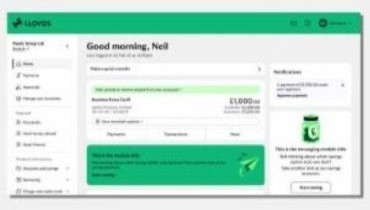
 

If you see the new look, use these steps

  1. Select ‘More' underneath the account you want to send money from.
  2. Under ‘Payments', select ‘Make an international payment’.
  3. You can choose to pay an existing recipient by selecting ‘Choose who to pay’ or you can ‘Pay someone new’.
  4. If you’re setting up a new payee, you will be asked to enter their country, SWIFT/BIC and IBAN (international account number), the bank’s name and address, recipient’s name and address.
  5. Enter the amount you want to pay, the currency, and choose who pays the charges. You will be shown the payment amount in GBP, and total to pay including charges, then select ‘Continue’.
  6. You can enter references for you and your recipient and select the Purpose of the payment. Review your payment then press ‘Confirm payment’.
 

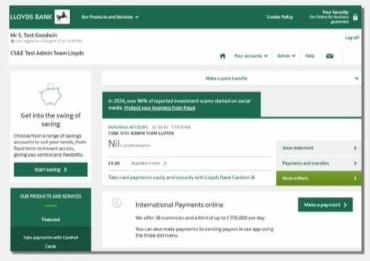
If you don’t see the new look, use these steps

  1. Select ‘More actions’ next to the account you want to send money from.
  2. Under ‘Payments and transfers’, select ‘Make an international payment’.
  3. You can select an existing recipient from the drop-down box or pay someone new by entering the BIC/Swift code in the ‘I know the BIC/Swift code field’.
  4. If you’re setting up a new recipient on the next screen, you will be  asked to enter the country, IBAN or account number, recipient’s bank name and bank address, recipient’s name and their address. Select ‘continue’.
  5. Enter in the amount you want to pay, along with the currency you want to send it in.
  6. Review your payment then press ‘Confirm’.

Frequently asked questions

Was this page helpful?