Id Verification
You can do this in our app
- Our app is the simplest way to prove who you are
- You won't need to visit a branch or post any documents to us.
Steps to take
We'll guide you through it.
-
- Download the Lloyds Bank app
- Register for Internet Banking
- Receive your activation code in the post and input it in the app.
- Log on to the app.
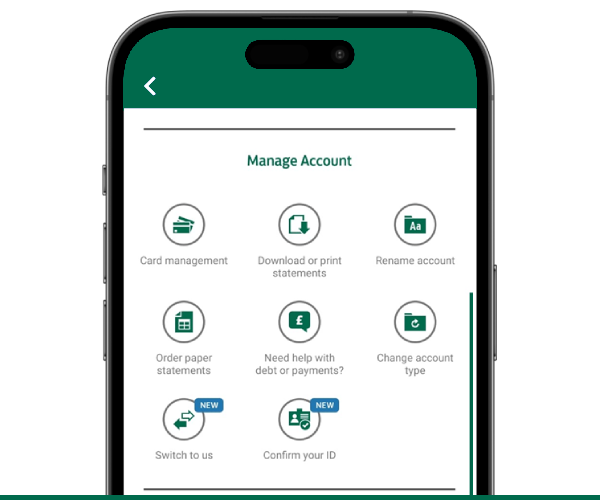
- Select More and then Confirm your ID from within the Manage Account section of your new account.
- Take a picture of your passport and a selfie using our app.
- We'll check the pictures you've sent us and email confirmation to you within the next 24 hours.
Getting started in the app
Need help?
If you're registered for online banking, the fastest way to get in touch is by messaging us securely online.
Let’s look at the details
How to register for Internet Banking
-
- Download the Lloyds Bank app.
- To start registering for Internet Banking, select Create log-on details.
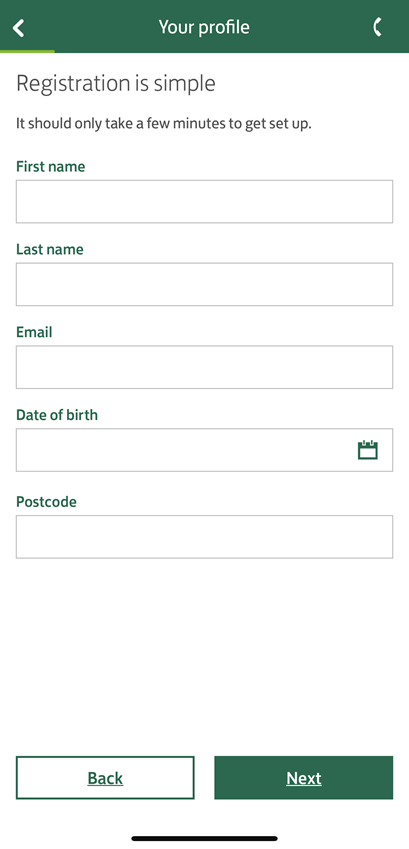
- Input the requested details.
-
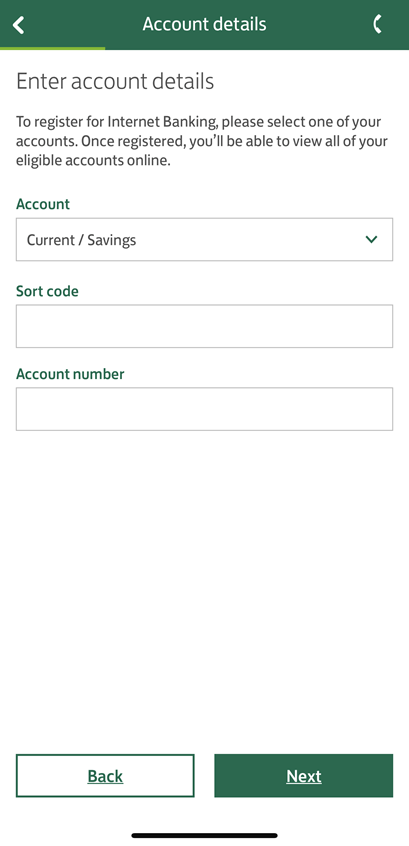
- Select current/savings and type in your Smart Start sort code and account number.
-
- Create secure logon details.

-
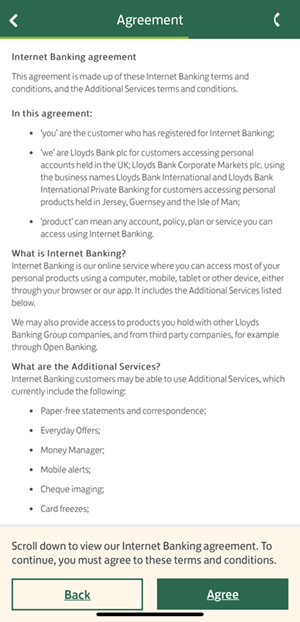
- Read our Internet Banking agreement, if you are happy to continue select Agree.
-
- Your parent or guardian will receive an activation code.
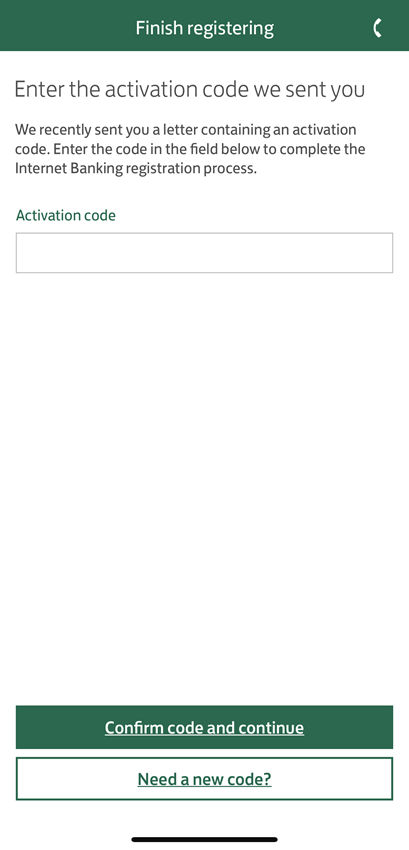
- When you receive your code, log on to Internet Banking and enter the activation code.
-
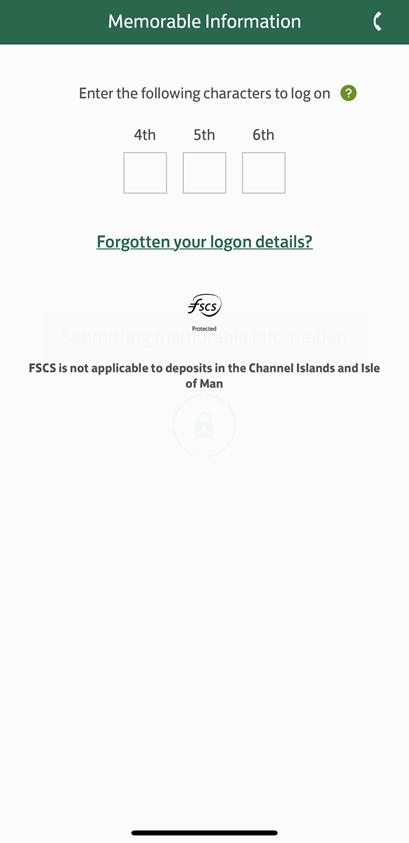
- Enter the requested randomly selected three characters from your memorable information.
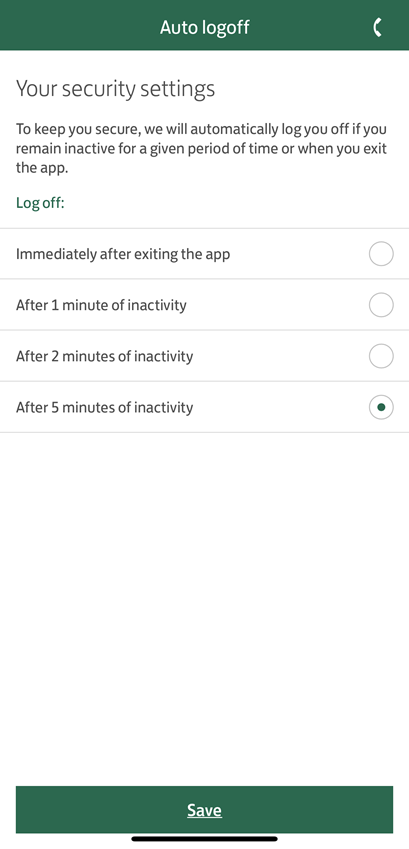
- Select Continue to see your security setting options.
-
- Choose how quickly you would like our app to log you off after you have stopped using it.
Select:
- Turn on Face ID or Touch ID to log on securely to Internet Banking with just a glance at your camera.
- Keep using memorable information to continue entering three characters from your memorable information to log on
- Select Ask me later, and we’ll ask you to continue using memorable information.
Now you can use the app to check your savings, spending, pay with cheques, and view card details.
How to prove who you are
-
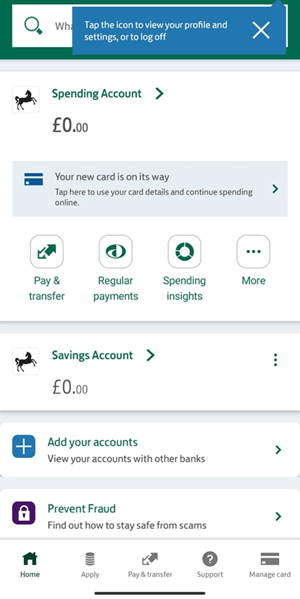
- Open your Lloyds Bank app, then log on and select More from within the Smart Spending section of the app.
-
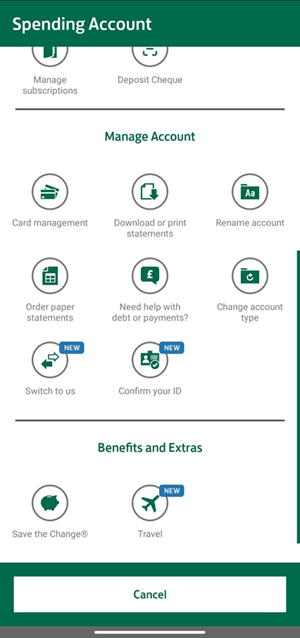
- Select Confirm your ID from within the Manage Account section of your Spending Account.
-
- Confirm that you have a UK/EU passport with you now.
- Take a picture of your passport following the guidance provided on our app.

-
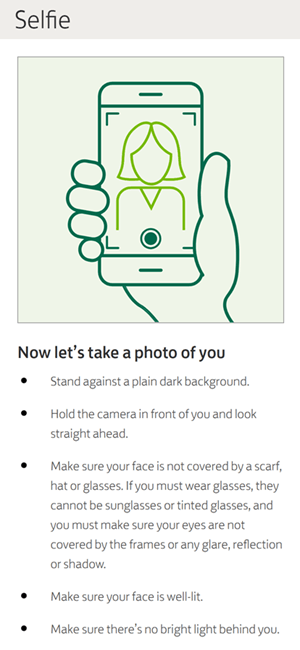
- Take a selfie by following the guidance provided on our app.
-
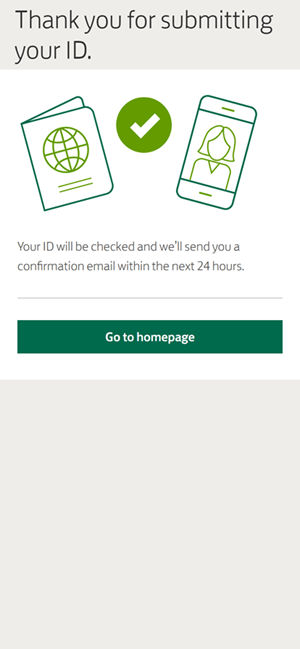
- You’ve completed the process. Once we’ve checked your pictures, we’ll send you confirmation by email.
You may also like

Important legal information
Google Pay is a trademark of Google LLC. Apple Pay is a trademark of Apple Inc., registered in the U.S. and other countries.
For children under the age of 13, a parent or legal guardian will need to use ‘Family Sharing’ for Apple devices or ‘Family Link’ for Android devices, to approve the app download.
Save the Change® is a registered trademark and used under licence.